Teachers and Grades Tables
Create the Teachers and TeacherCourse Tables
Teachers work like students — a teacher teaches courses, so we'll add a Teachers table plus a TeacherCourse join table that maps teachers to the courses they teach.
using FluentMigrator;

namespace CourseTutorial.Migrations.DefaultDB
{
    [DefaultDB, MigrationKey(20250707_1015)]
    public class DefaultDB_20250707_1015_TeachersAndTeacherCourse : AutoReversingMigration
    {
        public override void Up()
        {
            Create.Table("Teachers")
                .WithColumn("Id").AsInt32().IdentityKey(this)
                .WithColumn("FirstName").AsString(100).NotNullable()
                .WithColumn("LastName").AsString(100).NotNullable()
                .WithColumn("FullName").AsString(201).NotNullable()
                .WithColumn("Email").AsString(150).NotNullable().Unique()
                .WithColumn("DepartmentId").AsInt32().NotNullable()
                    .ForeignKey("FK_Teachers_DepartmentId", "Department", "Id");

            Create.Table("TeacherCourse")
                .WithColumn("Id").AsInt32().IdentityKey(this)
                .WithColumn("TeacherId").AsInt32().NotNullable()
                    .ForeignKey("FK_TeacherCourse_TeacherId", "Teachers", "Id")
                .WithColumn("CourseId").AsInt32().NotNullable()
                    .ForeignKey("FK_TeacherCourse_CourseId", "Courses", "Id");

            Create.UniqueConstraint("UQ_Teacher_Course")
                .OnTable("TeacherCourse")
                .Columns("TeacherId", "CourseId");
        }
    }
}
Note: This tutorial only creates the
TeachersandTeacherCoursetables to keep the schema complete; it does not generate a user interface or sample data for them. You can extend the application later by running Sergen for these tables.
Create the Grades Table
Each student gets a grade for each course, so let's add a Grades table. A grade row belongs to a student and a course (and a term), and stores the Midterm, Final, and Average values.
using FluentMigrator;

namespace CourseTutorial.Migrations.DefaultDB;

[DefaultDB, MigrationKey(20250616_1200)]
public class DefaultDB_20250616_1200_Grades : AutoReversingMigration
{
    public override void Up()
    {
        Create.Table("Grades")
            .WithColumn("Id").AsInt32().IdentityKey(this)
            .WithColumn("StudentId").AsInt32().NotNullable()
                .ForeignKey("FK_Grades_StudentId", "Students", "Id")
            .WithColumn("CourseId").AsInt32().NotNullable()
                .ForeignKey("FK_Grades_CourseId", "Courses", "Id")
            .WithColumn("TermId").AsInt32().NotNullable()
                .ForeignKey("FK_Grades_TermId", "Terms", "Id")
            .WithColumn("Midterm").AsDecimal(5, 2).Nullable()
            .WithColumn("Final").AsDecimal(5, 2).Nullable()
            .WithColumn("Average").AsDecimal(5, 2).Nullable();

        Create.UniqueConstraint("UQ_Grades_StudentId_CourseId_TermId")
            .OnTable("Grades")
            .Columns("StudentId", "CourseId", "TermId");
    }
}
The unique constraint stops duplicate grade rows for the same student/course/term combination.
Generate the Code with Sergen
Generate the Grades code the same way as before: select dbo.Grades, use the CourseDB module, and keep the default All option.
Start the application and the Grades screen will appear under CourseDB, ready for adding, editing, and viewing grades.
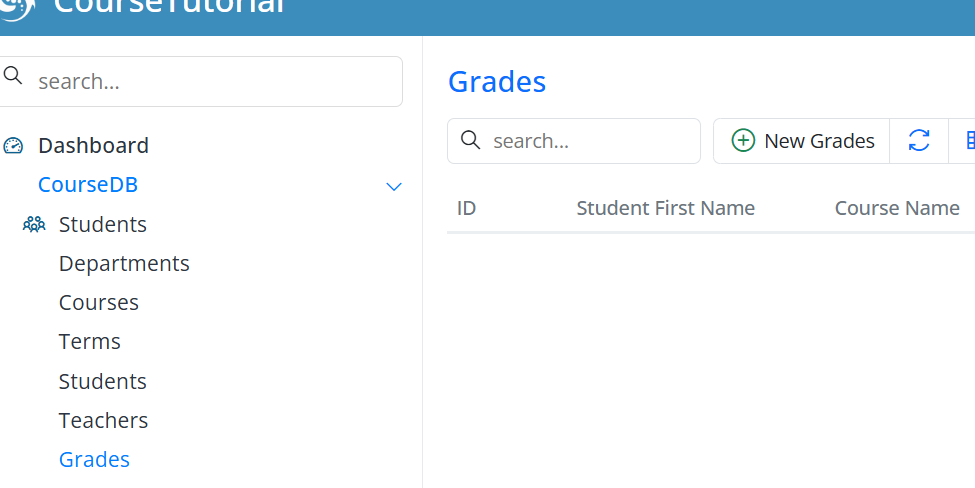
Use this screen to add students' course grades, edit existing grades, and view grade records.