Academic Terms
Create the Terms Table with a Migration
Next up is the Terms table, which stores academic terms like Spring 2027 and Fall 2026.
Like before, we'll create it with a timestamped migration. The Terms table has these columns:
- An auto-incrementing primary key
- A required and unique
Namecolumn StartDateandEndDatecolumns defining the academic period- An
IsActiveboolean (defaultfalse) — is this the current term? - An
IsRegistrationOpenboolean (defaultfalse) — can students register for courses?
We're using AutoReversingMigration again so the migration can be rolled back cleanly while we develop.
using FluentMigrator;
namespace CourseTutorial.Migrations.DefaultDB;

[DefaultDB, MigrationKey(20250614_1706)]
public class DefaultDB_20250614_1706_Terms : AutoReversingMigration
{
    public override void Up()
    {
        Create.Table("Terms")
            .WithColumn("Id").AsInt32().IdentityKey(this)
            .WithColumn("Name").AsString(50).NotNullable().Unique()
            .WithColumn("StartDate").AsDateTime().NotNullable()
            .WithColumn("EndDate").AsDateTime().NotNullable()
            .WithColumn("IsActive").AsBoolean().NotNullable().WithDefaultValue(false)
            .WithColumn("IsRegistrationOpen").AsBoolean().NotNullable().WithDefaultValue(false);
    }
}
Generate the Code with Sergen
Now let's generate the application code for Terms, just like we did for Department:
- Select the
dbo.Termstable - Enter
CourseDBas the module name - Keep the default
Alloption selected
Once it's done, start the application and Terms will appear under the CourseDB menu.
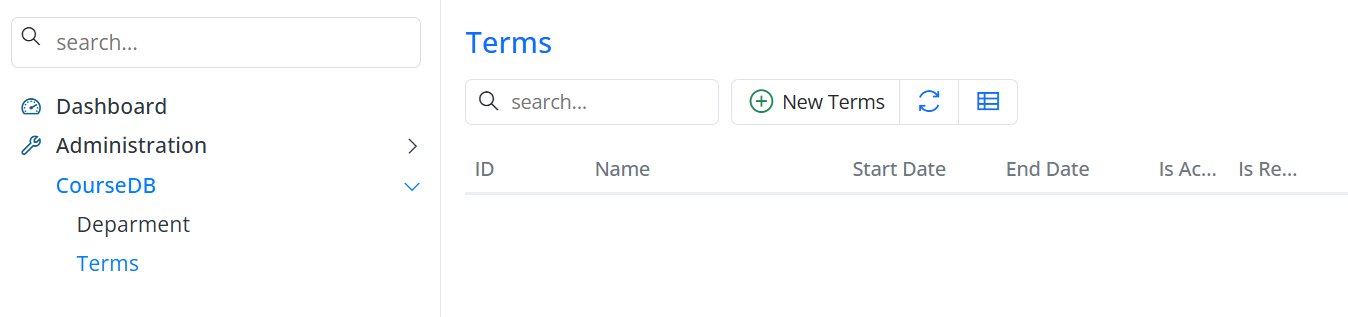
Add Some Sample Terms
Let's add a couple of terms — enrollments and grades later in the tutorial will reference them.
Open the CourseDB → Terms screen and create:
| Term | Start Date | End Date | Is Active | Is Registration Open |
|---|---|---|---|---|
| Fall 2026 | 2026-09-01 | 2026-12-31 | True | True |
| Spring 2027 | 2027-02-01 | 2027-06-15 | False | False |
These are the terms you'll pick from when you register students for courses.
Note: Dates in this tutorial are written in ISO format (
YYYY-MM-DD) so they're unambiguous regardless of the reader's culture. When you enter dates, Serenity's date editor uses your browser/application culture's format (e.g.,MM/DD/YYYYfor English/US), so you may need to type them in that culture's format.