Getting Started
The best and fastest way to get started with Serenity is the Serene starter application template.
Premium customers can also use the
StartSharptemplate, which they can download from the serenity.is members area.
Please check the prerequisites below before trying to install Serene.
You have a few options for installing the Serene template:
Prerequisites
Visual Studio, .NET, and TypeScript Versions
The application requires Visual Studio 2026+ with the most recent updates installed.
The .NET 10 SDK is only supported in Visual Studio 2026 18.8+.
If you don't have access to Visual Studio 2026+, you can alternatively use the command line to create projects and work in Visual Studio Code.
You can install the .NET SDK from:
https://dotnet.microsoft.com/download
As of this writing, the recommended version of TypeScript is 6.0.3+.
The project includes a reference to a recent version of the Microsoft.TypeScript.MSBuild package, which Visual Studio should use automatically.
You can also check https://www.typescriptlang.org/download for information on updating your TypeScript.
Node.js / npm
Node.js and its package manager npm are used for the following:
- TypeScript typings (.d.ts) for libraries like jQuery and Bootstrap.
- Installing and executing external tools like ESBuild
Node.js and npm LTS (Long Term Support) versions are required. You can download them from https://nodejs.org/en/.
The application checks their versions when you create a project and asks for confirmation to download and install them if needed. Still, it's a good idea to check your versions manually by opening a command prompt:
> npm -v
11.1.1
> node -v
24.10.0
If you get an error, they might not be installed or might not be on the path. Also, make sure your versions are equal to or higher than the ones shown above.
Visual Studio and External Web Tool Paths
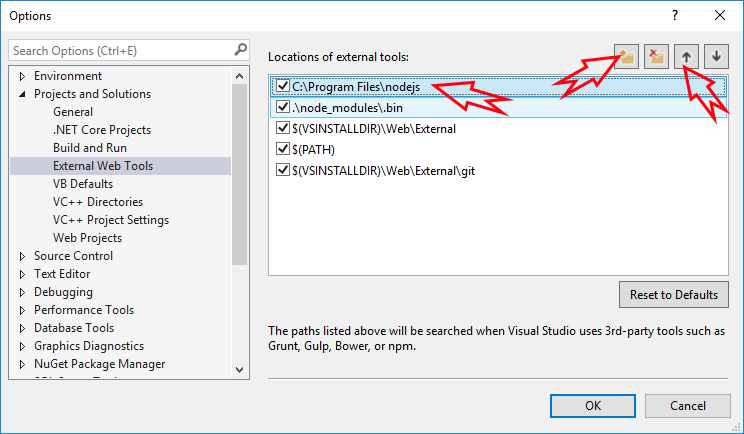
Even if you have the correct Node.js / npm installed, Visual Studio might still try to use its integrated (and older) version of Node.js.
In Visual Studio, click Tools => Options. Under Projects and Solutions => External Web Tools, add C:\Program Files\nodejs to the top of the list by clicking the folder-plus icon and then using the up arrow: