Managing Enrollments with a Master–Detail
Student ↔ StudentCourses as a Master–Detail
The idea is simple: an enrollment only makes sense in the context of a student, so instead of giving StudentCourses its own page, we'll manage each student's enrollments inside their dialog.
If StudentCourses had a standalone page, anyone could create enrollments without knowing which student they belong to — that makes it easy to end up with orphaned or inconsistent records. In practice, a course registration always belongs to a specific student, so we'll manage it within that relationship.
After this change:
- There is no standalone menu or page for StudentCourses
- Course records are viewed and edited only within the Student dialog
- Each course record is stored against its student
- Detail records are managed within the master record
Remove the Standalone StudentCourses Page
When Sergen generates a Page class for an entity, Serenity also creates a standalone list screen and adds it to the navigation menu. In a master–detail design the detail table doesn't need its own page, so we'll remove it.
Delete these files:
StudentCoursesPage.csStudentCoursesPage.tsx
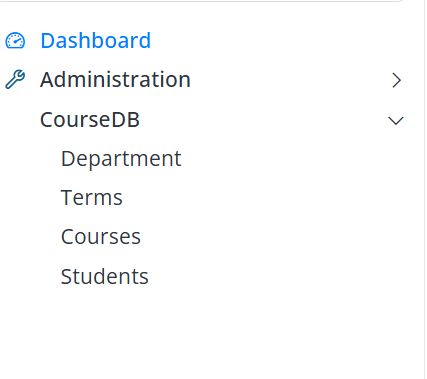
Also, if there is a menu item defined for StudentCourses in the navigation file (Sergen generates one in CourseDBNavigation.cs), remove that line.
Note: After you rename
StudentCoursesGrid.tsxtoStudentCoursesEditor.tsxin the next step, the oldStudentCoursesDialog.tsxis no longer referenced and can also be deleted.
Rebuild the project afterwards. StudentCourses will no longer appear in the menu or work as a standalone screen — enrollments are managed only within the Student dialog.
Turn StudentCoursesGrid into a Grid Editor
To edit detail records inside the master dialog, Serenity provides GridEditorBase. Instead of the EntityGrid-based structure Sergen created, we'll use that for StudentCourses.
Rename StudentCoursesGrid.tsx to StudentCoursesEditor.tsx and give it these contents:
StudentCoursesEditor.tsx
import { StudentCoursesColumns, StudentCoursesRow } from '../../ServerTypes/CourseDB';
import { GridEditorBase } from '@serenity-is/extensions';

export class StudentCoursesEditor<P = {}> extends GridEditorBase<StudentCoursesRow, P> {
    static override [Symbol.typeInfo] = this.registerEditor('CourseTutorial.CourseDB.StudentCoursesEditor');

    protected override getColumnsKey() { return StudentCoursesColumns.columnsKey; }
    protected override getLocalTextPrefix() { return StudentCoursesRow.localTextPrefix; }
}
This grid editor:
- Lives only inside the Student dialog and manages detail records together with the master record.
- Lets you add, edit, and delete detail rows right inside the dialog.
- Is never used as a standalone list screen.
Now build the project.
Add the CourseList Field to StudentsForm.cs
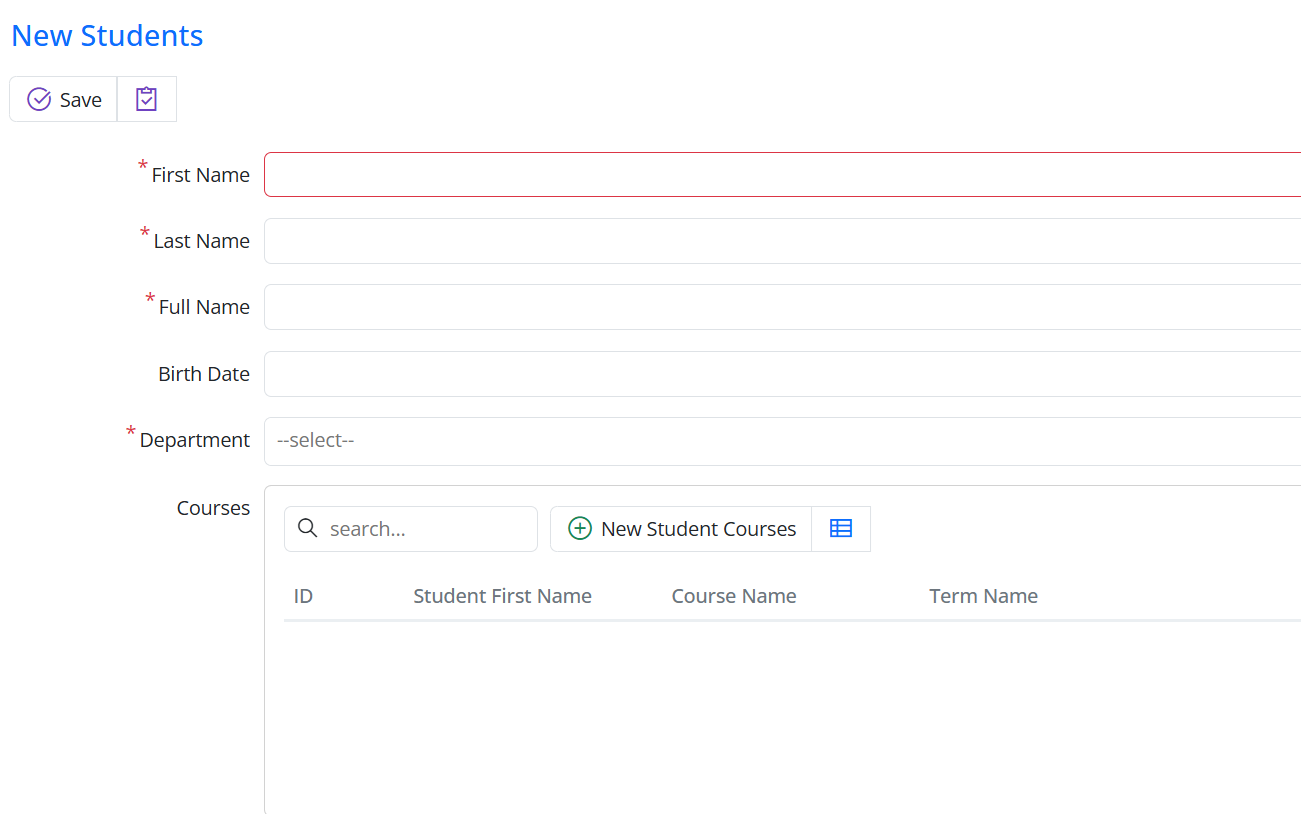
To show the editor in the Student dialog, add this property to StudentsForm.cs:
[DisplayText("Courses"), StudentCoursesEditor, SkipNameCheck]
public List<StudentCoursesRow>? CourseList { get; set; }
The StudentCoursesEditor attribute tells Serenity which grid editor to use for this field, and SkipNameCheck stops Serenity from looking for a physical column for it in the StudentsRow table — this field represents the detail side of the relationship.
Note: The
StudentCoursesEditorattribute is generated from the TypeScript editor class by Serenity's client-types transform (sergen t, which also runs duringdotnet build). If the attribute isn't found when you build, rebuild the project so the generated attribute file is picked up.
After this, the Student dialog will show a grid editor for the student's courses.
Hide the StudentId Field
StudentId is the foreign key that ties a detail record to its student, so the user shouldn't have to edit it. Mark it with the Hidden attribute in StudentCoursesForm.cs:
[FormScript("CourseDB.StudentCourses")]
[BasedOnRow(typeof(StudentCoursesRow), CheckNames = true)]
public class StudentCoursesForm
{
    [Hidden]
    public int? StudentId { get; set; }
    public int? CourseId { get; set; }
    public int? TermId { get; set; }
}
The master–detail relationship fills in StudentId for us, so hiding it in the dialog is all we need.
Tip: Because
CourseIdandTermIdare plainintproperties, the dialog renders them as numeric input boxes — you type the numeric ID (e.g.,1) rather than picking from a list. To show dropdowns instead, add a lookup editor attribute, e.g.[ServiceLookupEditor(typeof(CoursesRow))]onCourseIdand[ServiceLookupEditor(typeof(TermsRow))]onTermId.
We'll also drop the student column from StudentCoursesColumns.cs:
namespace CourseTutorial.CourseDB.Columns;
[ColumnsScript("CourseDB.StudentCourses")]
[BasedOnRow(typeof(StudentCoursesRow), CheckNames = true)]
public class StudentCoursesColumns
{
    [EditLink, DisplayText(TextKey = "Db.Shared.RecordId"), AlignRight]
    public int? Id { get; set; }
    public string? CourseName { get; set; }
    public string? TermName { get; set; }
}
Since detail rows are only shown inside the Student dialog, showing the student's name again in the grid would be redundant. The grid editor now displays just the course information.
Create the Detail Dialog
Adding and editing detail rows happens through a popup dialog. In a master–detail design that dialog should derive from GridEditorDialog (not EntityDialog), and it's only used by the grid editor — never as a standalone page.
Create a new file named StudentCoursesEditDialog.tsx:
StudentCoursesEditDialog.tsx
import { GridEditorDialog } from "@serenity-is/extensions";
import { StudentCoursesForm, StudentCoursesRow } from "../../ServerTypes/CourseDB";

export class StudentCoursesEditDialog extends GridEditorDialog<StudentCoursesRow> {
    static override [Symbol.typeInfo] = this.registerClass("CourseTutorial.CourseDB.StudentCoursesEditDialog");

    protected override getFormKey() { return StudentCoursesForm.formKey; }
    protected override getLocalTextPrefix() { return StudentCoursesRow.localTextPrefix; }
    protected form = new StudentCoursesForm(this.idPrefix);
}
GridEditorDialog is the base class for the add/edit dialog that a grid editor opens, so it's exactly what we need for detail rows.
Wire the Editor to the Dialog
Now we tell the grid editor which dialog to open when the user adds or edits a row. Update StudentCoursesEditor.tsx:
import { GridEditorBase } from "@serenity-is/extensions";
import { StudentCoursesColumns, StudentCoursesRow } from "../../ServerTypes/CourseDB";
import { StudentCoursesEditDialog } from "./StudentCoursesEditDialog";

export class StudentCoursesEditor extends GridEditorBase<StudentCoursesRow> {
    static override [Symbol.typeInfo] = this.registerEditor("CourseTutorial.CourseDB.StudentCoursesEditor");

    protected override getColumnsKey() { return StudentCoursesColumns.columnsKey; }
    protected override getDialogType() { return StudentCoursesEditDialog; }
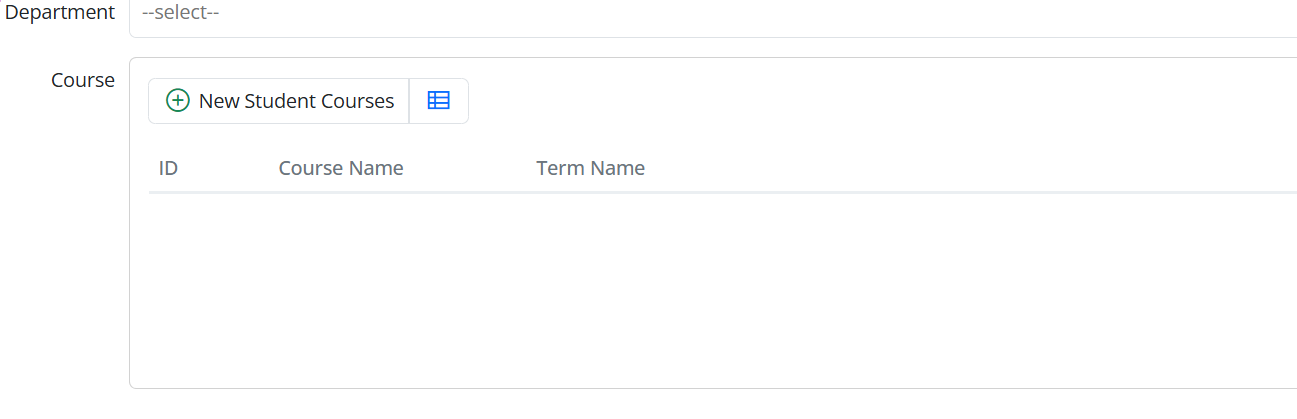
    protected override getAddButtonCaption() { return "Add"; }
}
getDialogType tells the editor which dialog to open. We'll also override getAddButtonCaption so the add button reads "Add" instead of the default:
protected override getAddButtonCaption() {
    return "Add";
}
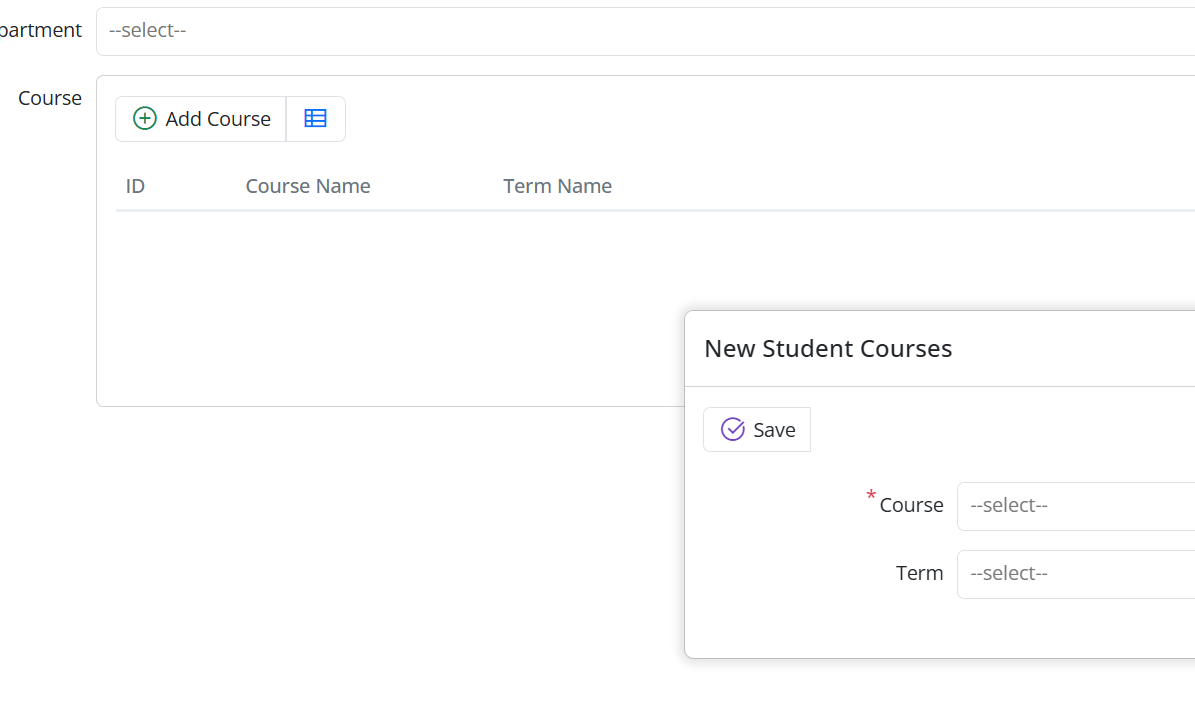
Clicking Add opens the StudentCoursesEditDialog, where you can create and edit detail records.
Tell the Server About the Relationship
The server side of the relationship is declared with the MasterDetailRelation attribute on StudentsRow.cs. Add a list field that holds the student's StudentCourses records:
[MasterDetailRelation(foreignKey: nameof(StudentCoursesRow.StudentId), ColumnsType = typeof(Columns.StudentCoursesColumns))]
[DisplayText("Course List"), NotMapped]
public List<StudentCoursesRow>? CourseList { get => fields.CourseList[this]; set => fields.CourseList[this] = value; }

public class RowFields : RowFieldsBase
{
    public RowListField<StudentCoursesRow> CourseList = null!;
}
MasterDetailRelation ties the StudentCourses records to their student; the foreign key it uses is StudentCoursesRow.StudentId.
Note:
StudentCoursesColumnslives in theCourseTutorial.CourseDB.Columnsnamespace. From insideStudentsRow.csyou must refer to it asColumns.StudentCoursesColumns(the child namespace), otherwise the code won't compile.
NotMapped tells Serenity this field isn't a physical column in the Students table — it only represents the detail list.
With this in place:
- Loading a Student automatically loads their enrollments.
- New detail rows get
StudentIdfilled in automatically. - Detail rows are added, updated, and deleted together with the master row.
What You'll See in the Dialog
Because we put the editor on StudentsForm, there's nothing else to add to the dialog. When it opens:
- The student's fields appear at the top.
- Their enrollments show in the grid editor.
- Add/edit/delete of enrollments happens through the popup dialog.
Serenity takes care of the rest: detail rows are saved automatically when you save the master, you don't have to write an extra service, and the framework keeps the data consistent.