Installing Serene From the Visual Studio Marketplace
Downloading the Template
Open the URL below in your browser:
https://marketplace.visualstudio.com/items?itemName=VolkanCeylan.SereneSerenityApplicationTemplate
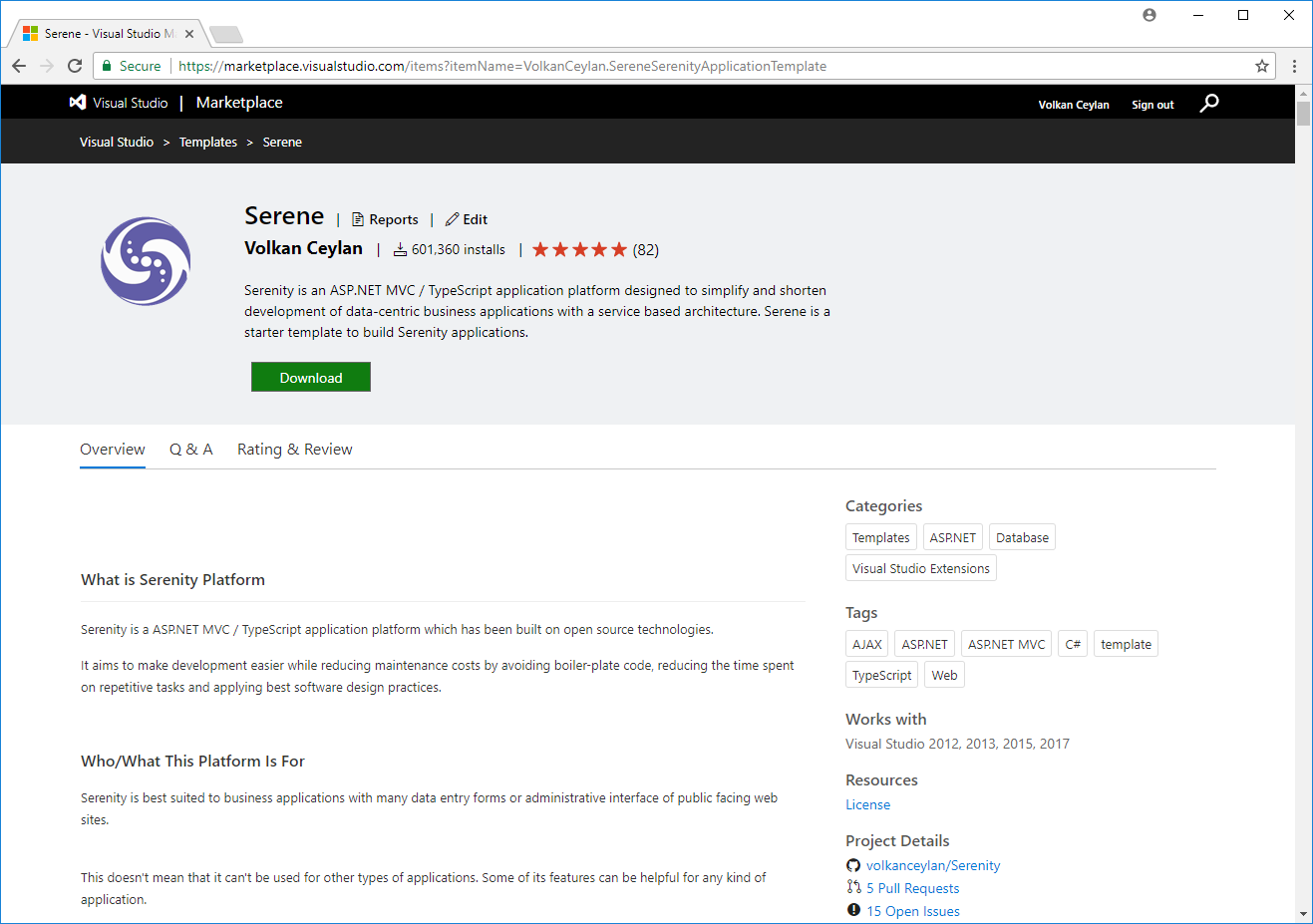
Click Download to transfer the VSIX file to your computer.
You need Visual Studio 2026 18.8+ to run Serene, because the .NET 10 SDK only supports Visual Studio with the latest updates.
Installing the Template in Visual Studio
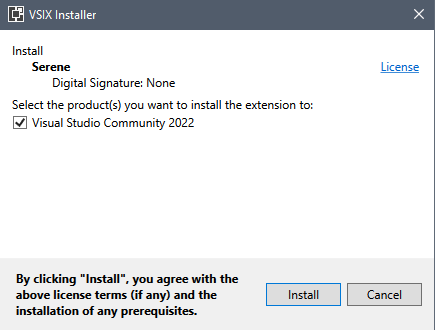
After the download finishes, double-click the downloaded VSIX file to open the Visual Studio extension installer:

Click Install when prompted.
Creating a New Project in Visual Studio
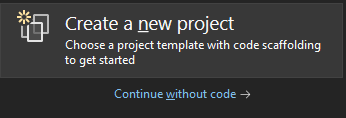
Start Visual Studio (if it was already open, restart it), and click Create a new project on the startup screen, or select File => New Project from the menu.
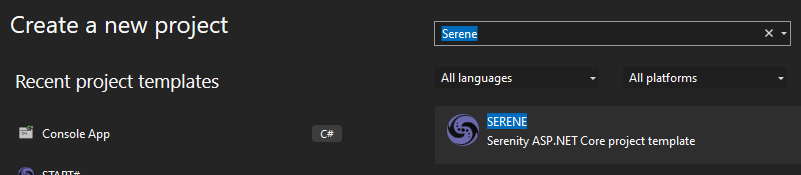
If it isn't already displayed, use the search box at the top to find Serene, then select SERENE.
Name your application something like MyCompany, MyProduct, or HelloSerenity, or leave the default name MySerene1.
Please don't name it Serenity. It may conflict with other Serenity assemblies.
You should use Pascal casing, for example a name that starts with a capital letter. Don't name your project something like myProject.
Click OK.
Selecting Features
Serene will prompt you to choose the features you would like to include.
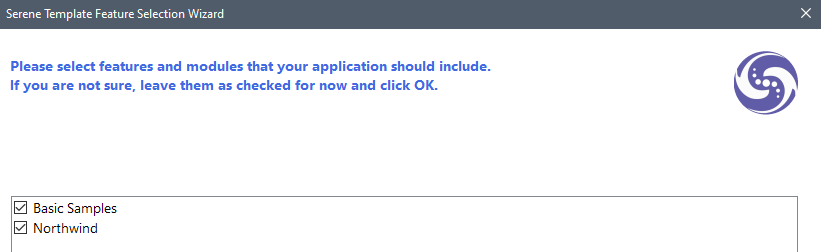
All of the listed features/samples are optional. Initially, we recommend you leave them all checked so you can see how they are implemented.
Once you have some experience with Serene, you can create a new application and clear all of these checkboxes for a bare-minimum project.
Choose the features you like, click OK, and take a break while Visual Studio creates the solution.